
TranscriptsHow-to
How to get a transcript of any YouTube video
Four ways to pull a transcript out of YouTube — including videos with no captions at all — and when each one is worth the trouble.
Saad Nadeem
6 min read
Updated
On this page
Most of the time you do not want to watch the video. You want the words in it: to quote a line, to check what someone actually said, to turn a talk into notes, or to feed it to something else. There are four ways to get them, and which is worth your time depends almost entirely on whether the video has captions already.
1. YouTube's own transcript panel#
The fastest route, and the one most people never find. Under the video, open the ... menu and choose Show transcript. A panel opens with the caption text, timestamped; clicking a line seeks the player to it.
For reading along this is genuinely good and costs nothing. Its limits appear the moment you want to do something with the text:
- No search inside the panel — you scroll.
- No export. Selecting and copying is the only way out.
- Auto-generated captions carry no speaker labels and little punctuation, so a two-person conversation arrives as one undifferentiated column of words.
- If the video has no caption track, the option is not there at all.
2. Copy and paste into a document#
The manual version of an export: open the panel, select everything, paste, clean up.
For one video this is often the right answer. The cleanup is where it falls apart. Pasted transcript text carries a timestamp on its own line before every caption line, so a 15-minute video lands as several hundred alternating lines of number and fragment. Turning that into prose is a find-and-replace job you will do once cheerfully, twice grudgingly, and the third time you will go looking for a tool.
3. Get the caption file itself#
If you want a real subtitle file (.srt or .vtt) rather than text on a page,
you need the caption track rather than the panel's rendering of it. This is what you
want for editing video, re-uploading captions, or feeding a tool that expects
timings.
Worth knowing, because it explains a lot of apparent inconsistency: YouTube's translated tracks are generated from an existing track. YouTube will happily offer a video's captions in a long list of languages, but only if the video already has at least one caption track to translate from. No original, no translations, however long the menu looks elsewhere. If that is why you are here, see how to translate a YouTube video to English without CC.
It is also harder to do than it looks. There is no plain URL you can just call: YouTube's caption delivery is locked to the page itself, which is why browser extensions can read captions and a standalone script generally cannot.
4. Generate one with speech recognition#
When there is no caption track, the first three options do not exist. The only route left is to transcribe the audio.
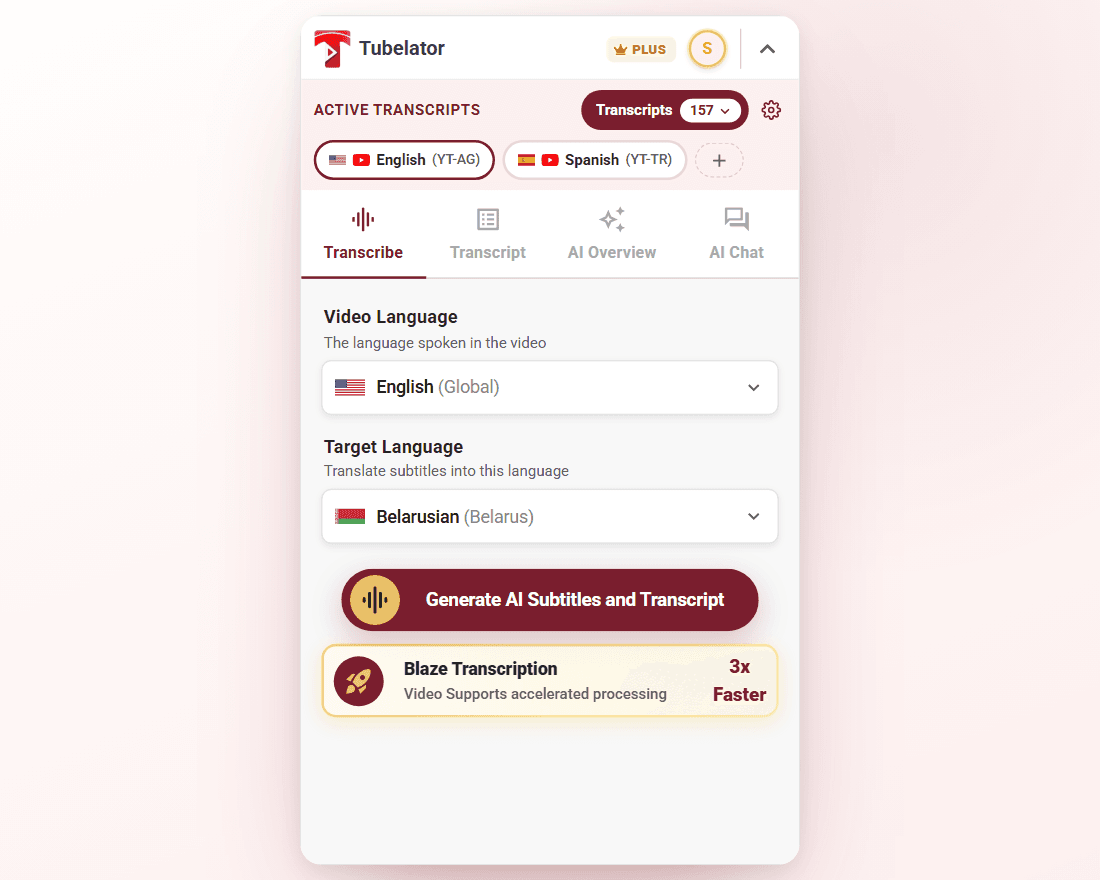
In Tubelator this is the Transcribe tab. Two fields:
- Video Language — the language spoken in the video
- Target Language — translate subtitles into this language
Then Generate AI Subtitles and Transcript. The result is a timestamped transcript; set a different target language and it comes back translated.
You will see the status change as it works: Accessing audio…, Processing video, then Transcribing… with a percentage, and finally Activating your new transcript. Text starts appearing within moments instead of after the whole video is processed, and lines stream into the Transcript tab while the job is still running.
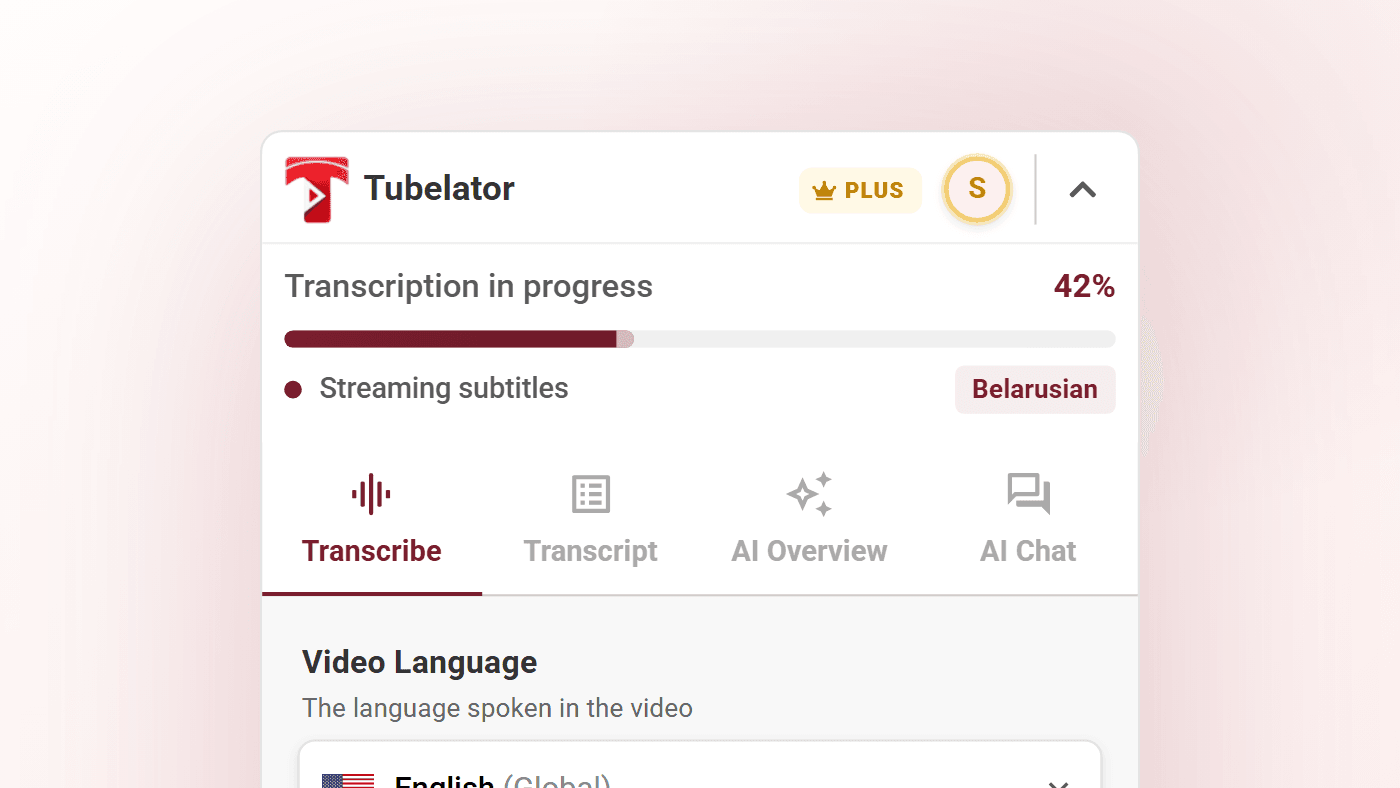
Most videos take seconds rather than minutes; longer ones take a few minutes, still far less time than watching them.
Two things to know before you try it. Generating a transcript requires an account — reading captions that already exist does not. And a failed generation costs you nothing: usage is counted only when a transcript actually completes.
Its really good for other vids that don't have subtitles so i will be using this really crazy work!
— Shan Siva, Chrome Web Store review
Which one to use#
| If you want to… | Use | Cost |
|---|---|---|
| Read along while watching | YouTube's transcript panel | Free, built in |
| Grab a quote from one video | Copy and paste | Free, a few minutes of cleanup |
| Get a subtitle file for editing | The caption track itself | Free, if the video has one |
| Transcribe a video with no captions | Speech recognition | Free tier, then paid |
| Do any of this weekly | A tool | Your time, mostly |
The honest summary: for a single video that already has captions, YouTube's panel and your clipboard are fine and anything else is overkill. The calculation changes when the video has no captions (where manual effort does not help at all, because there is nothing to copy) or when you are doing this often enough that the cleanup is the job.
Working with the transcript#
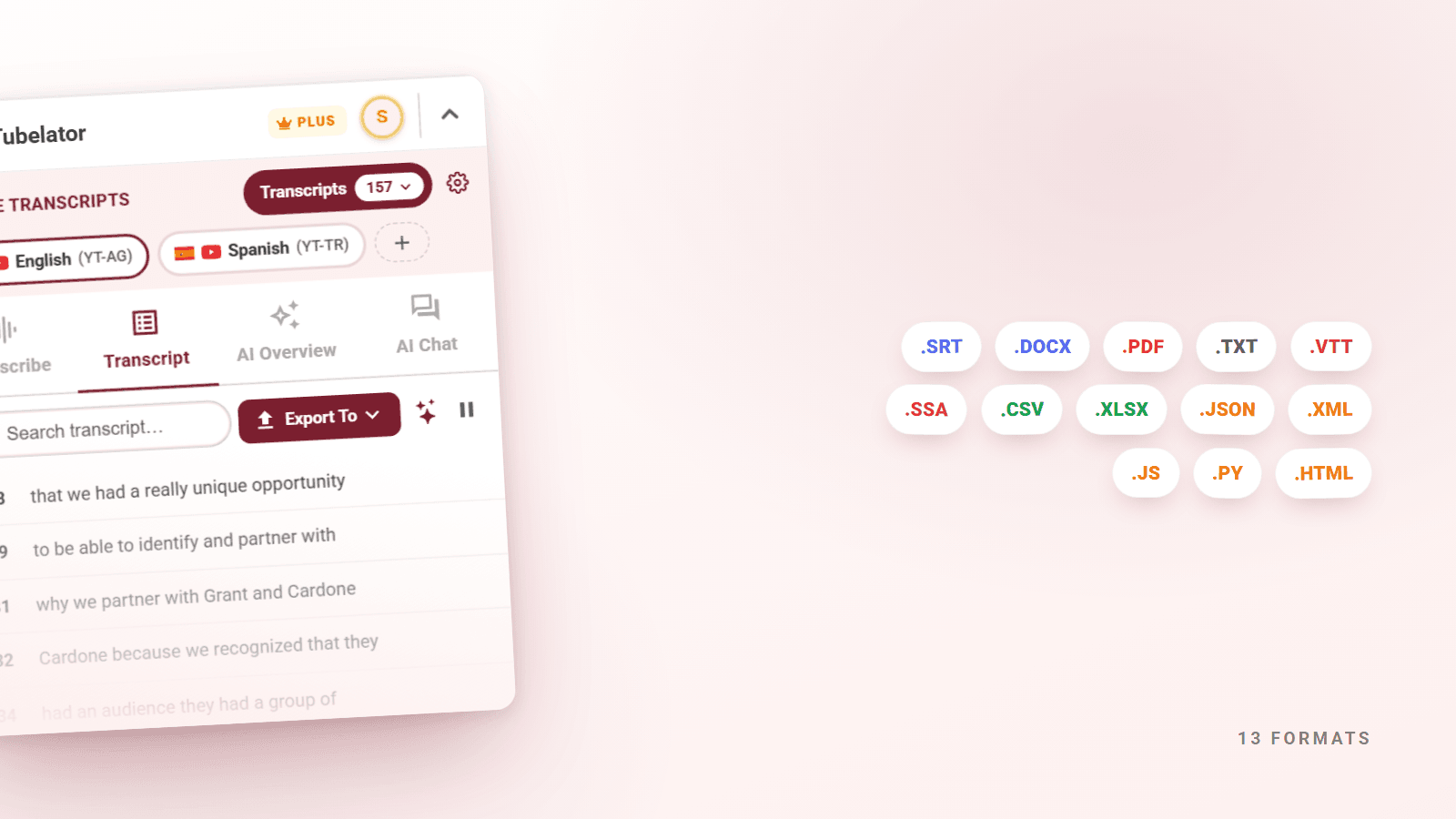
Once a transcript is loaded, the Transcript tab has a search field, an Export To button, an Analyze with AI shortcut, and a control to pause auto-scroll if you would rather it stopped following the video.
Two details worth knowing:
Search filters the view, not the export. If you search for a word and then export, you get the whole transcript, not just the matching lines. That sounds obvious and is a real bug in tools that get it wrong.
Every line has a ⋮ menu with Set Loop Start, Set Loop End, Copy
and Speak. Looping is built for re-hearing a phrase rather than watching once
and moving on: it repeats a passage until you clear it — see
dual subtitles for language learning
for the workflow this is built around.
Getting it out#
Export To opens Export Transcript. Two clipboard actions come first: Copy
Full (with timestamps) and Copy Plain (no timestamps). Then four Popular
Formats: .SRT (SubRip), .DOCX (Word), .PDF, .TXT. Show more formats
reveals the rest.
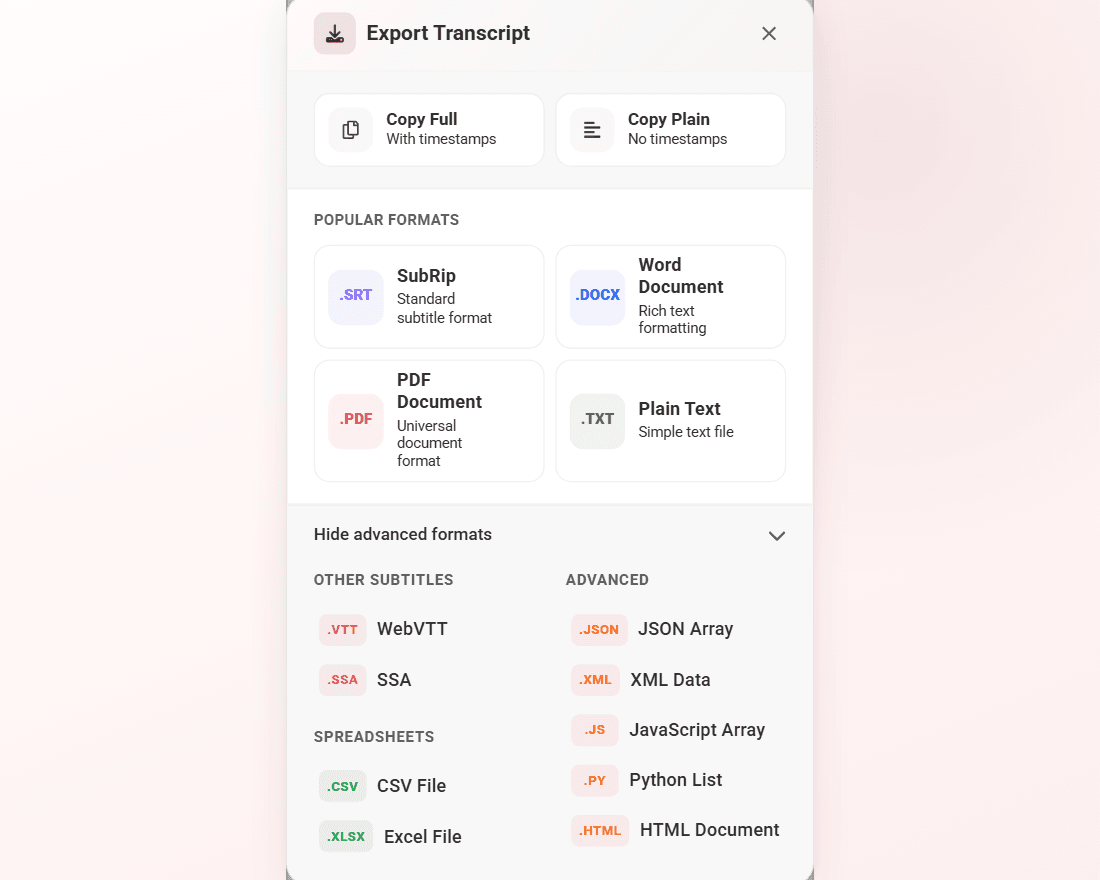
| Group | Formats | Use it for |
|---|---|---|
| Popular | .SRT .DOCX .PDF .TXT | Captions, reading, sharing, pasting |
| Other subtitles | .VTT .SSA | Web players and styled subtitle tracks |
| Spreadsheets | .CSV .XLSX | Counting, filtering, analysis |
| Advanced | .JSON .XML .JS .PY .HTML | Feeding another tool or script |
One thing that is worth more than the count, because it is the sort of thing that fails quietly elsewhere: PDF export ships its own fonts. A PDF library's default font covers 256 characters, and anything beyond that comes out as mangled Latin or empty boxes without ever raising an error. Tubelator bundles Noto fonts covering Arabic, Chinese, Japanese, Korean, Devanagari, Thai, Hebrew, Tibetan and more, which also brings correct right-to-left ordering and contextual letter forms. If you have ever exported a Japanese transcript and got a page of rectangles, that is the bug being avoided.
Filenames get the same treatment. A / in a video title becomes a space rather than
being deleted (dropping it welds Part 1/2 into Part 12, a different meaning
rather than a missing character), and titles that collide with reserved
Windows device names are renamed, because a file called CON.pdf simply fails to
download.
Free to start#
Tubelator is free to install, with no card and no trial timer, and the free plan includes AI transcriptions, overviews, chat and exports every month. No account is needed to read captions that already exist.
If transcripts are part of your week, Plus is $3.99 a month, 20% off the $4.99 list price, with a much larger allowance. See the full pricing breakdown for Pro and the feature-by-feature comparison.
If you only ever need one transcript, use YouTube's panel and your clipboard. The tools are for the second, the fifth and the fiftieth.