
SubtitlesHow-toTranslation
How to Translate a YouTube Video to English Without CC
Why YouTube's CC button or Auto-translate option goes missing, and how to translate a YouTube video to English when it has no captions at all.
Saad Nadeem
7 min read
On this page
The video that answers your question is a lecture in Mandarin, or a Korean interview, and you speak neither. You click CC for English subtitles. The button is greyed out. Or the subtitles menu opens and there is no Auto-translate in it.
YouTube can translate subtitles into English. It cannot translate subtitles that do not exist. That covers most versions of this problem. If the video has captions, YouTube's Auto-translate gives you English for free, but only after you turn a caption track on (steps below). If it has none, translating the YouTube video to English without CC means making captions from the audio first. That is what we built Tubelator to do, and the steps are below.
Why the CC button or Auto-translate is missing#
Auto-translate translates a caption track, not the video's audio. The player takes an existing set of subtitles, either uploaded by the creator or generated by YouTube's speech recognition, and machine-translates the text. No track means nothing to translate, and the option never appears.
Why would a video have no caption track? YouTube's help page lists the usual reasons automatic captions are missing:
- The spoken language is not one YouTube generates captions for.
- The audio is poor, or the speech is buried under music.
- Several people talk over each other, or the video switches between languages.
- There is a long silence at the start.
- The video is very long, or YouTube is still processing complex audio.
Creators can also remove automatic captions from their videos.
That list describes a lot of what people want translated: a lecture filmed from the back of a room, a podcast where the hosts talk over each other.
YouTube Auto-translate not working? Turn on a caption track first#
Try this before installing anything. It is free and built into YouTube.
- Start the video and click the gear icon (Settings) in the player.
- Open Subtitles/CC and pick a caption track, any one.
- Go back into Subtitles/CC. Auto-translate now appears at the bottom of the list.
- Choose English.
Step 2 is the one people skip. Auto-translate only shows up after a caption track is selected, so with subtitles off the menu does not list it at all.
If there is no CC button at all, or the Subtitles/CC menu has nothing to pick, the video has no caption track. No setting will change that, and neither will clearing your cache or reinstalling your browser. Unless the creator adds captions, they have to be generated from the audio.
Can YouTube translate the voice itself? Only if the creator added it. Some videos have an Audio track option in the gear menu, which means the creator uploaded dubbed audio in other languages. Otherwise, YouTube translates text only.
How to translate a YouTube video to English without CC#
Install Tubelator from the Chrome Web Store (desktop Chrome only), open the video, and its panel appears next to the player. It makes subtitles from the video's audio with speech recognition, so it does not need a caption track, and it can produce English directly. It covers 98 spoken languages, including Chinese, Japanese, Korean, Arabic, Hindi, Russian, Turkish, Vietnamese, Persian and Spanish.
Before you start#
You need an account to generate subtitles, though not to read captions that already exist. Let any ad finish first, because a job cannot start while one is playing, and the video has to be at least one minute long.
Also check whether it already exists. If this video has already been transcribed into English, the Target Language list marks English with a Transcribed chip, and you can load it from the Transcripts dropdown at the top of the panel instead of generating it again.
Set the two languages#
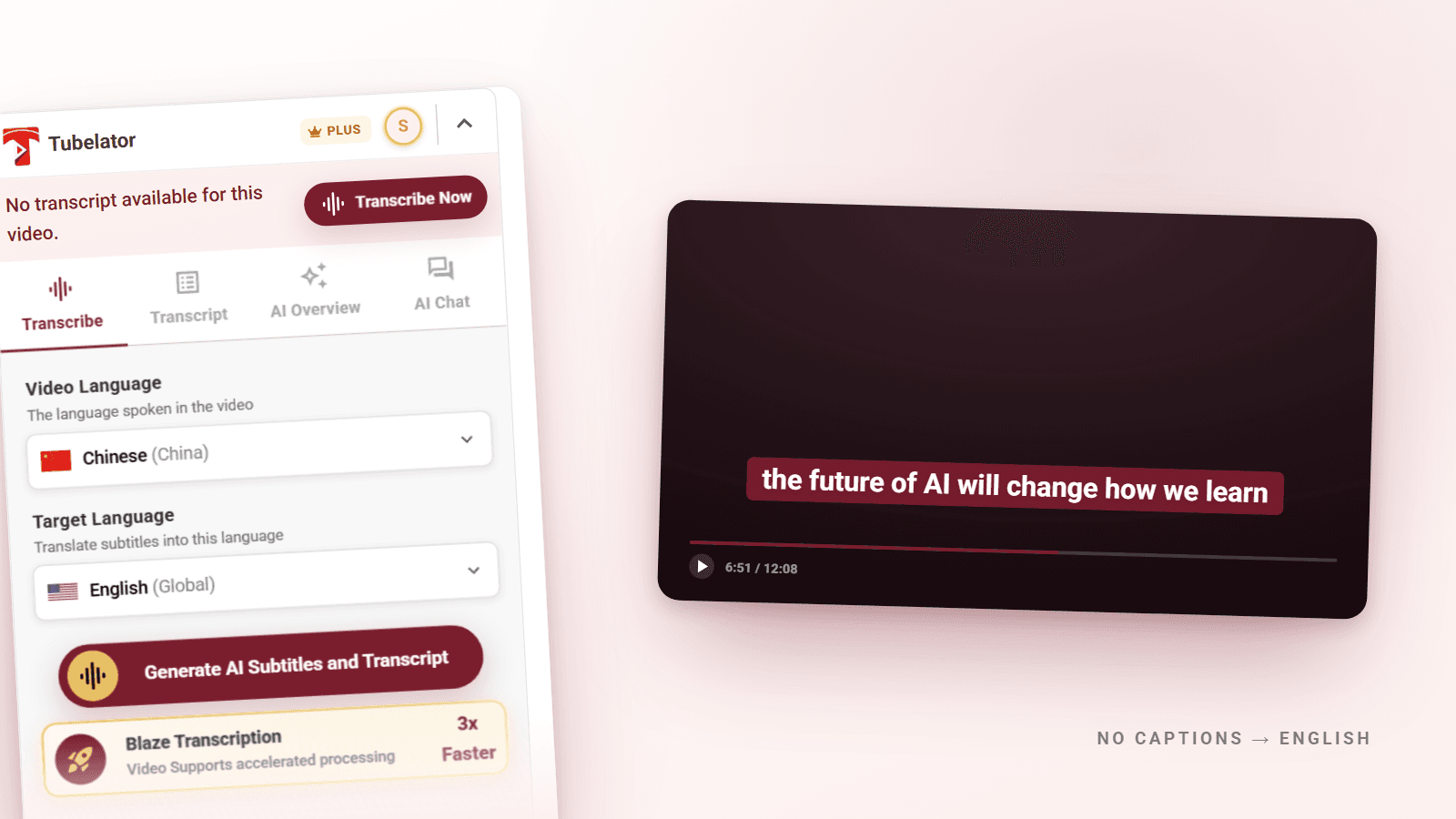
On a video with no captions, the panel says No transcript available for this video. and offers Transcribe Now. The subtitle button Tubelator adds to the player leads to the same place. Its tooltip says Create a transcript to enable subtitles. Either one opens the Transcribe tab.
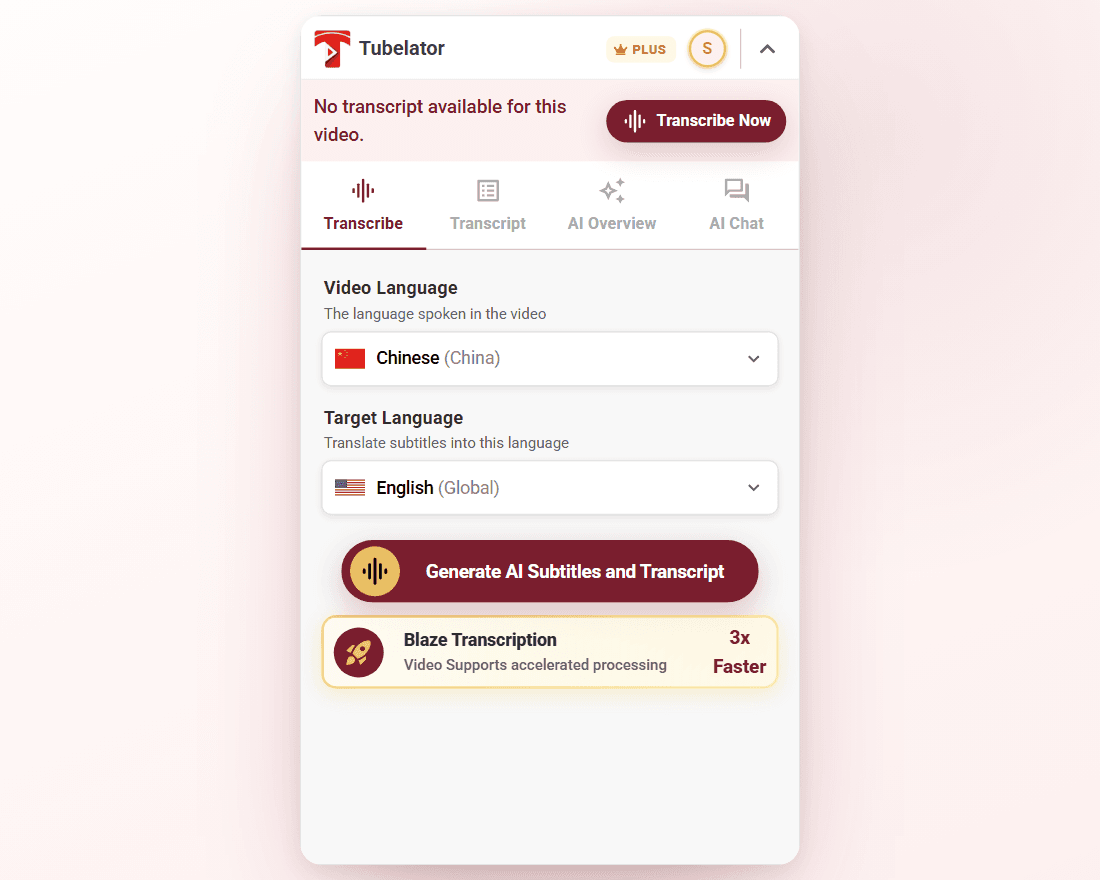
The form has two fields:
- Video Language: The language spoken in the video
- Target Language: Translate subtitles into this language
Set Video Language to the language you hear, set Target Language to English, and press Generate AI Subtitles and Transcript.
Check the first field every time. Video Language starts on English, or on whatever you chose last time, so set it to the language actually spoken, Mandarin for a Mandarin video. If a video mixes languages, pick the one spoken most.
Chinese, Japanese and Korean videos#
The steps are the same: set Video Language to Chinese, Japanese or Korean, and Target Language to English. Tubelator listens to the audio, not the picture, so it makes no difference whether the video has Chinese subtitles burned into the image or nothing on screen at all.
What happens next#
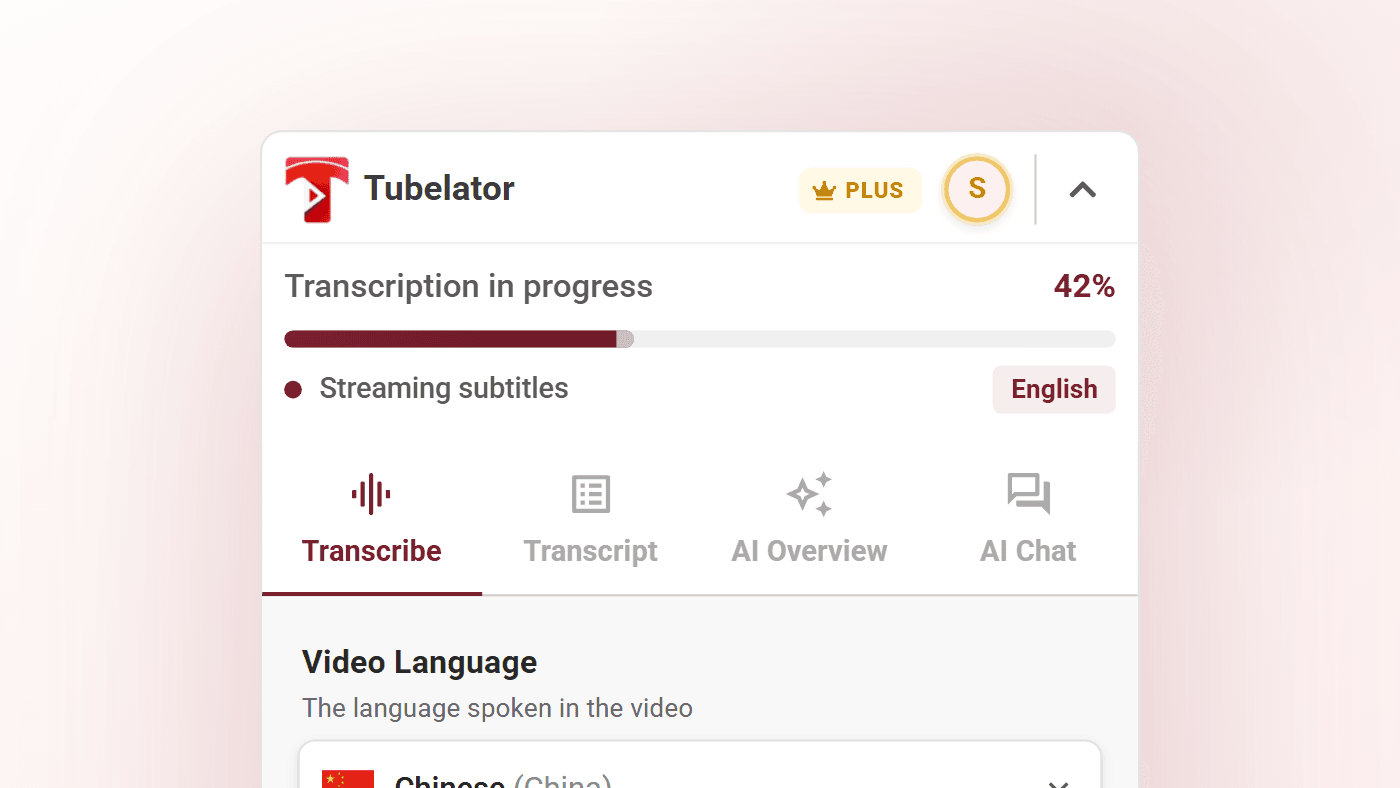
The panel and the button step through Accessing audio..., Processing video and Transcribing... with a percentage. Once transcription starts, the top of the panel reads Transcription in progress. Most videos finish in seconds. Long ones take a few minutes, which is still less than watching them.
Watch the original and the English together#
English alone is enough to understand a video. If you are learning the language, or want to check the translation against what was said, you want both lines on screen: the original above, English below.
If the video has captions in its original language, load them, then click the +
next to the track pills at the top of the panel and choose English. YouTube's
translation appears as a second pill marked YT-TR (YouTube translation), free.
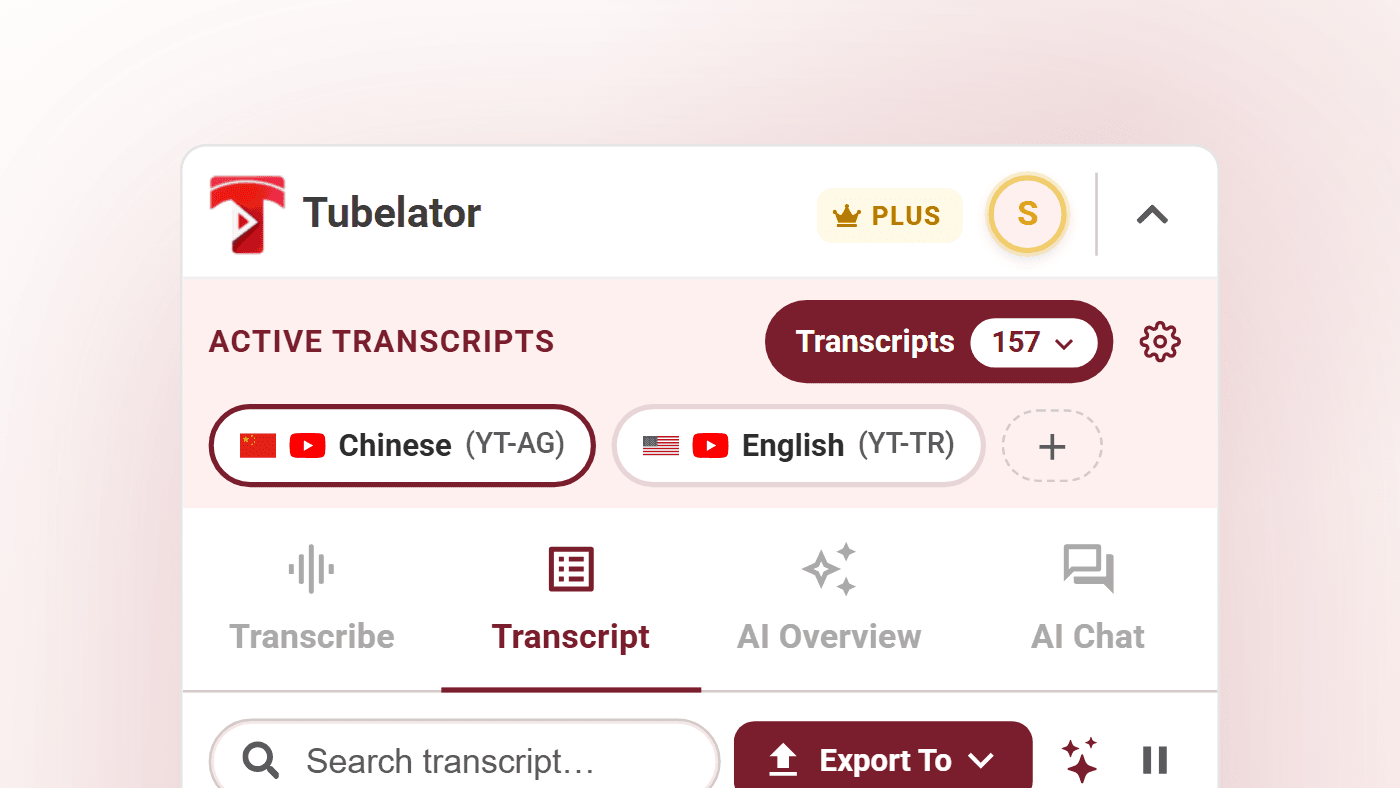
If it has no captions at all, run two jobs: one with Target Language set to the same language as Video Language (a transcript of what was said), and one set to English. Both tracks then sit in Active Transcripts and are already stacked on the video.
Styling the two lines differently and looping a hard passage are covered in dual subtitles for language learning.
Keep the English subtitles#
The Transcript tab shows the English text with timestamps; click a line to jump
the video there. Export To opens Export Transcript, which exports whichever
track is active, the English one included, in thirteen formats such as .SRT,
.VTT, .DOCX and .PDF. Copy Plain puts the text on your clipboard without
timestamps. The formats, and why PDFs of Chinese or Arabic text come out readable,
are covered in how to get a transcript of any YouTube video.
Which option fits#
| Situation | Use | Cost |
|---|---|---|
| The video has captions in any language | YouTube Auto-translate | Free, built in |
| You want English plus the original, and captions exist | Original track + YT-TR track | Free |
| No captions, you want to watch in English | Transcribe with Target Language English | Included in the free plan |
| No captions, you want both languages | Two jobs, original and English | Included in the free plan |
| You are publishing the video with translated captions or a dub | An upload-and-render tool | Usually paid per minute |
Tools in the last row ask you to paste a link or upload the file, then return a subtitle file or a dubbed video. They are built for creators preparing their own videos for another audience. If you only want to understand something you are watching, downloading it and uploading it somewhere else is a long way round.
Good to know#
More than one language. To get English and Spanish from a Japanese video, run a second job with the other target language. Both tracks stay on the video.
Desktop browsers. Tubelator runs in Chrome, Edge and Brave on desktop, on regular YouTube video pages.
Free to start#
Tubelator is free to install, with no card and no trial timer, and the free plan includes AI transcriptions every month. Reading captions that already exist, YouTube's translated tracks, and transcripts already generated for a video are always free.
If you translate lectures, podcasts or interviews every week, Plus is $3.99 a month, discounted from $4.99, with a much larger allowance. The pricing page has Pro and the full comparison.